Manual
CREWork user manual
Use this guide to find your way around CREWork, set up company records, manage workers and assets, and use safety, training, operations and accommodation workflows.
Quick start
- Sign in or open the demo workspace.
- Check your top navigation and company menu.
- Add workers, assets and any required setup records.
- Use My Work for assigned daily tasks.
Start and sign in
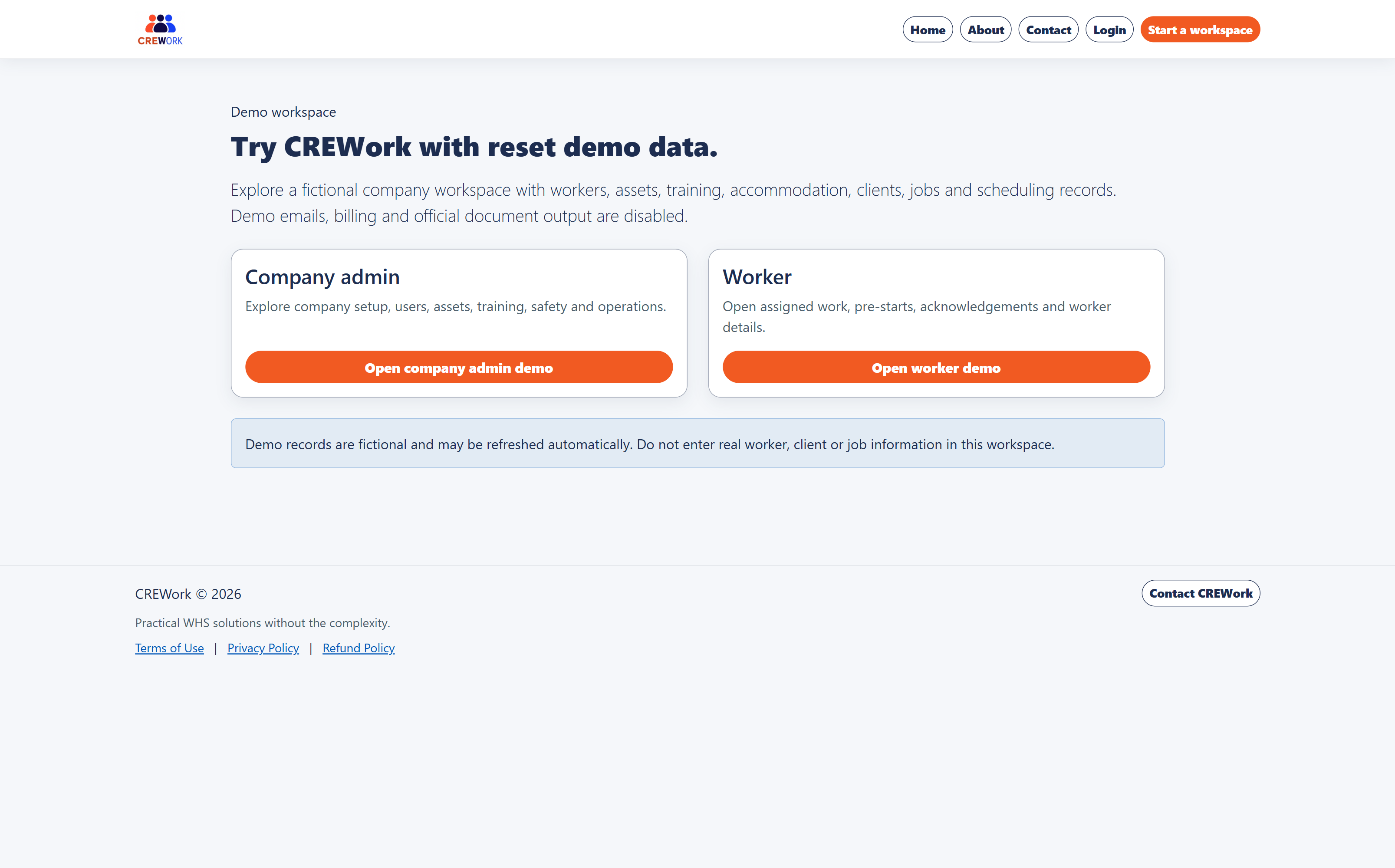
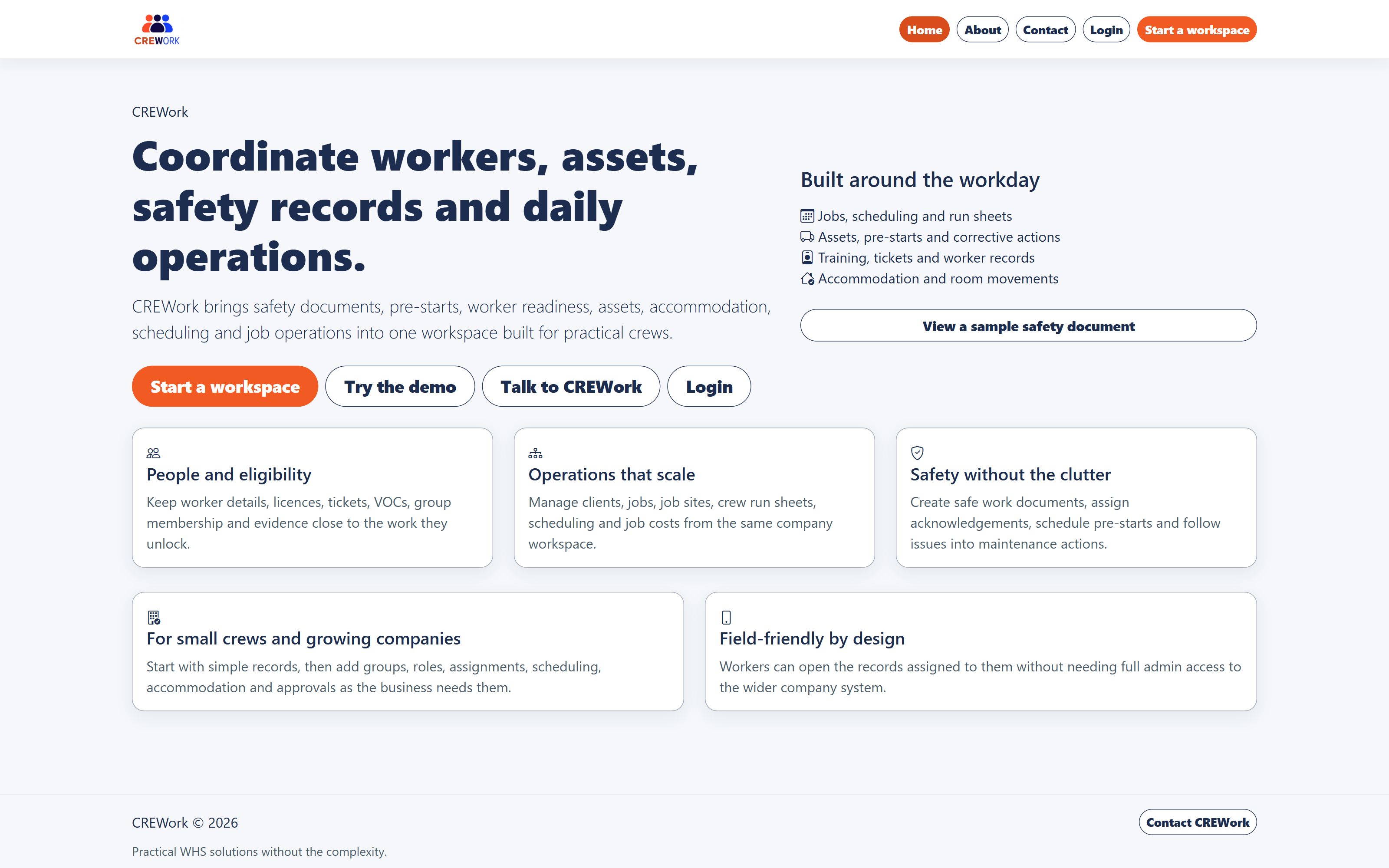
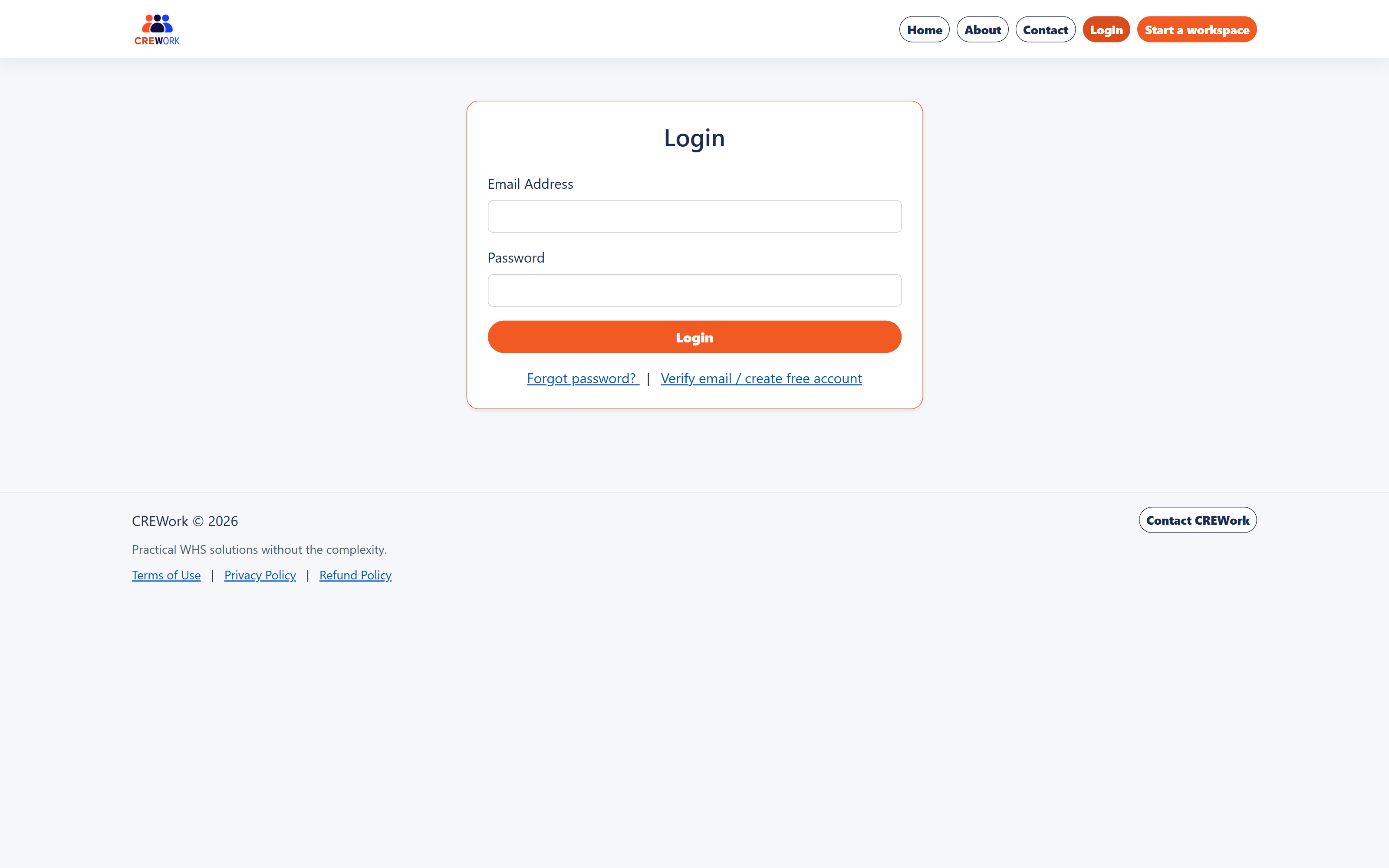
The public home page explains the platform and gives new users clear entry points. Use Start a workspace to begin setup, or Login if you already have an account.
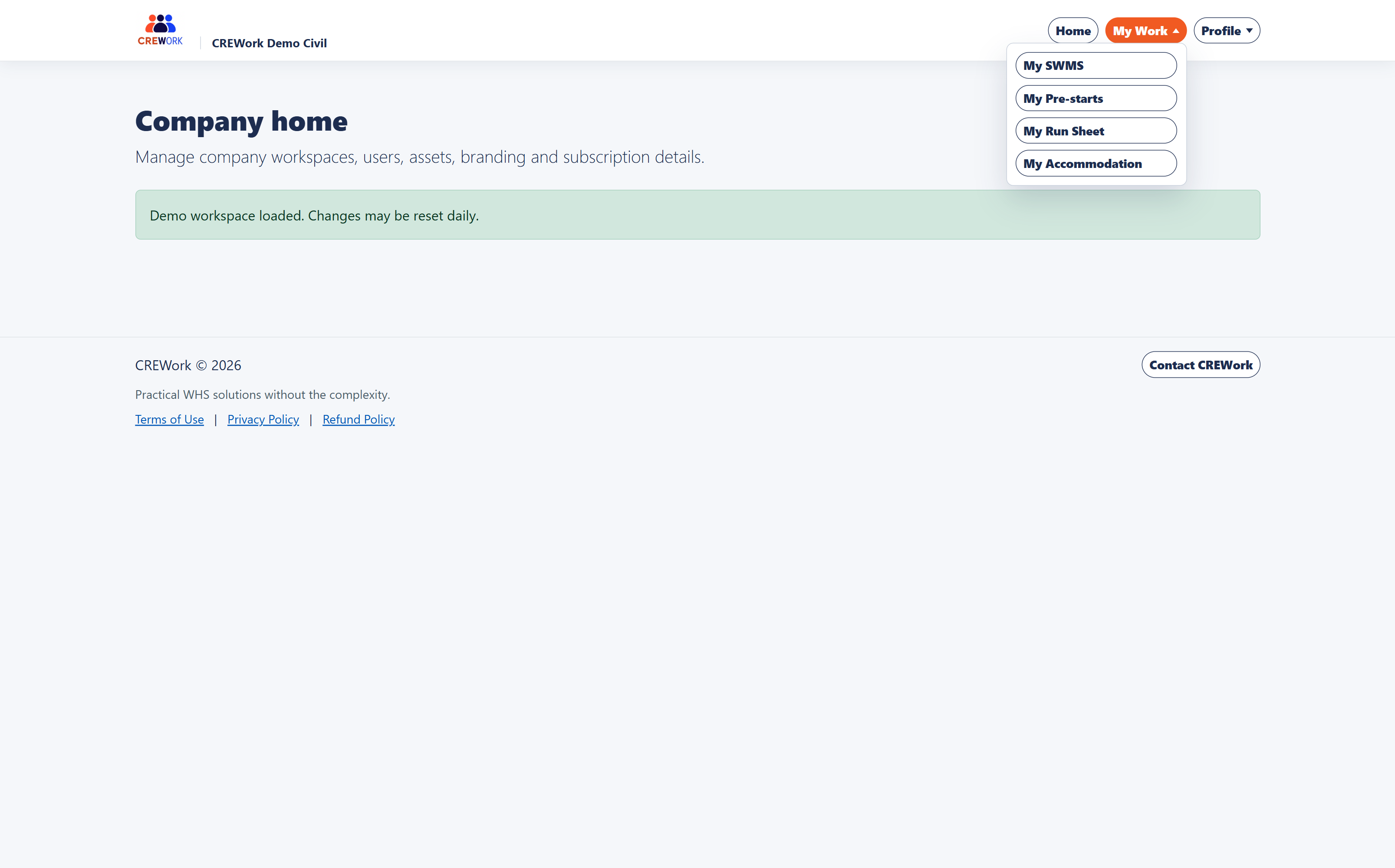
Navigation
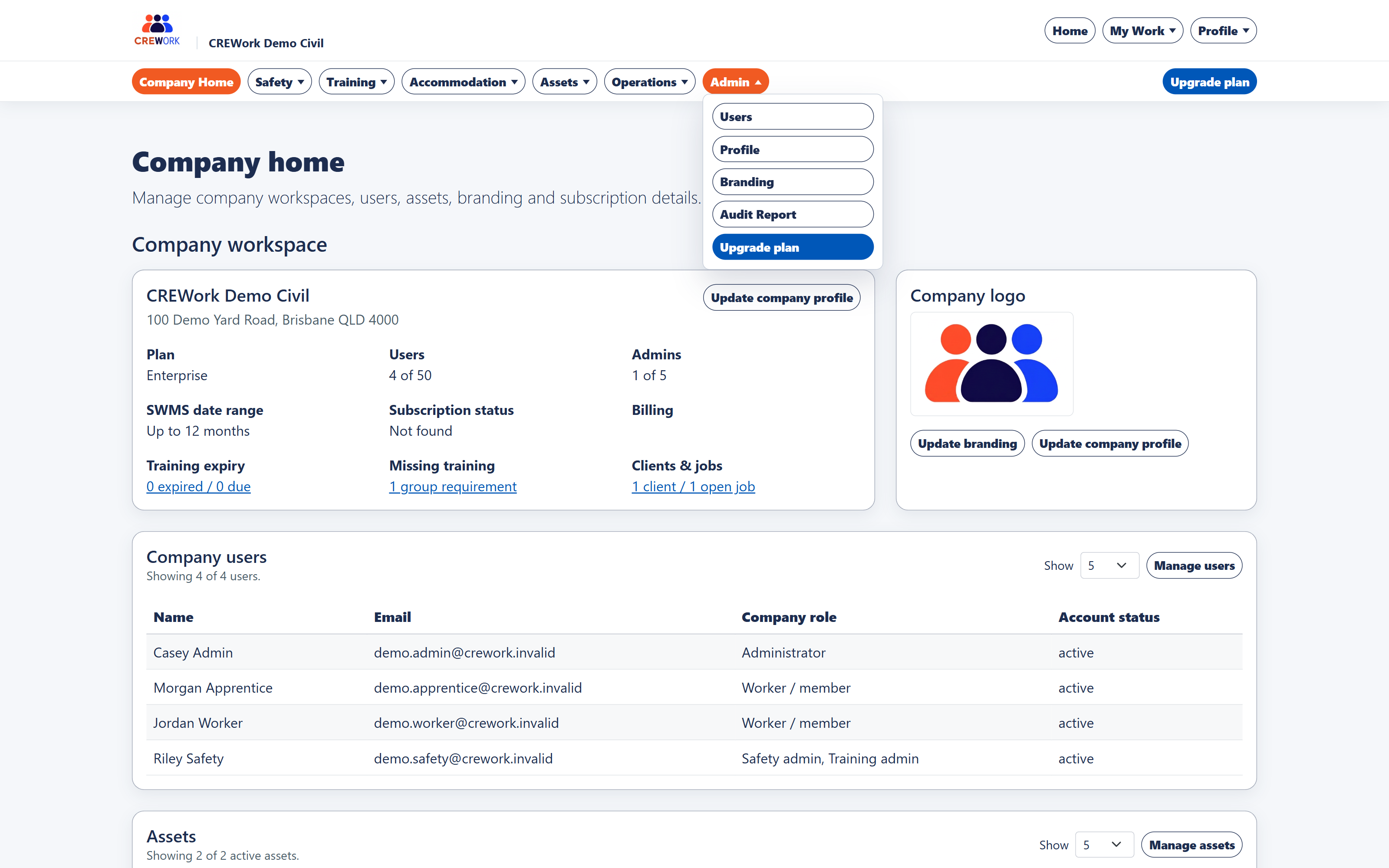
Company administrators see company navigation for setup and management. Workers normally use My Work for the items assigned to them, such as safety acknowledgements, pre-starts, run sheets and accommodation.
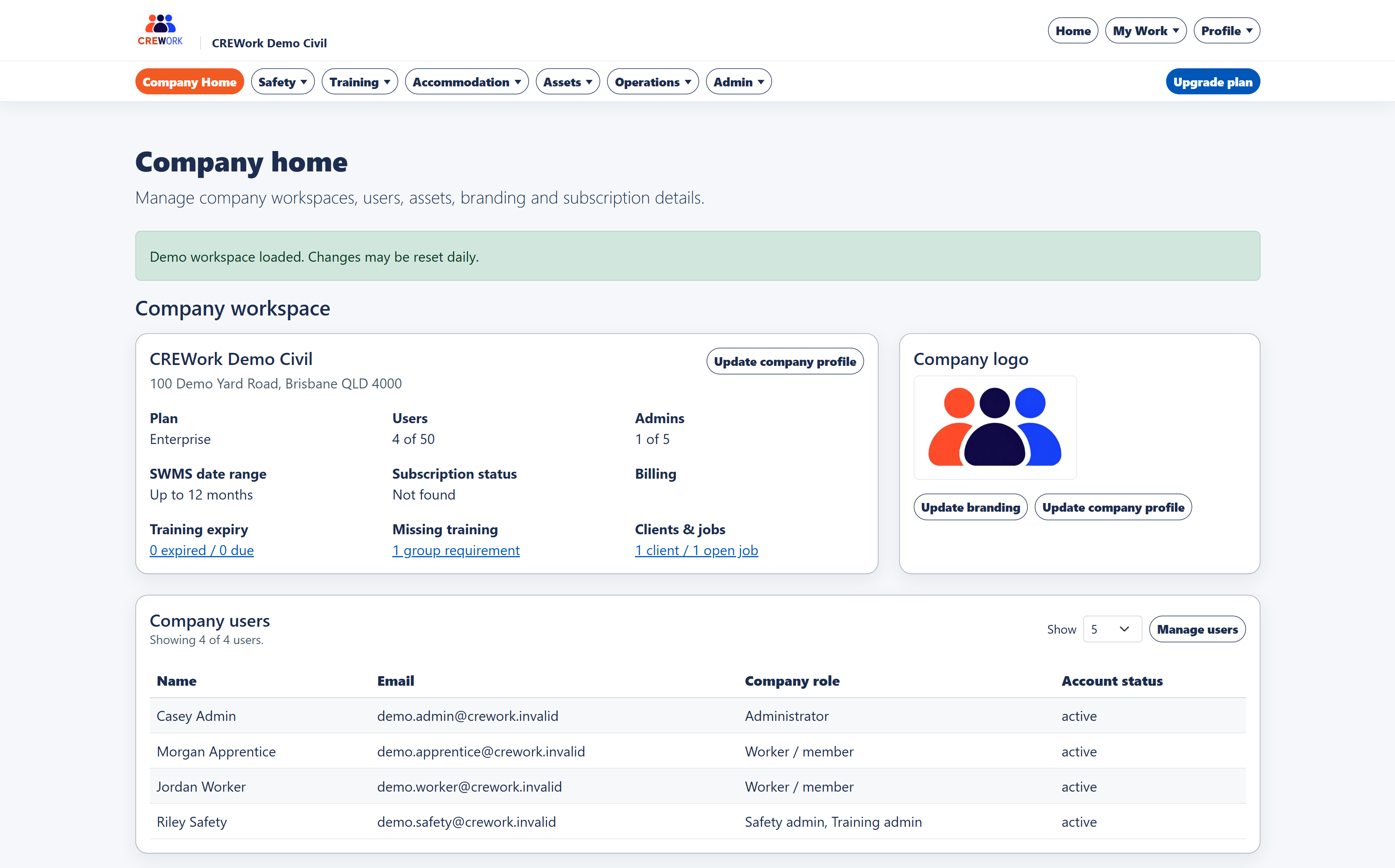
Company workspace
Company Home is the starting point for workspace setup. It shows plan limits, users, company logo, assets and shortcuts to the management pages available to your role.
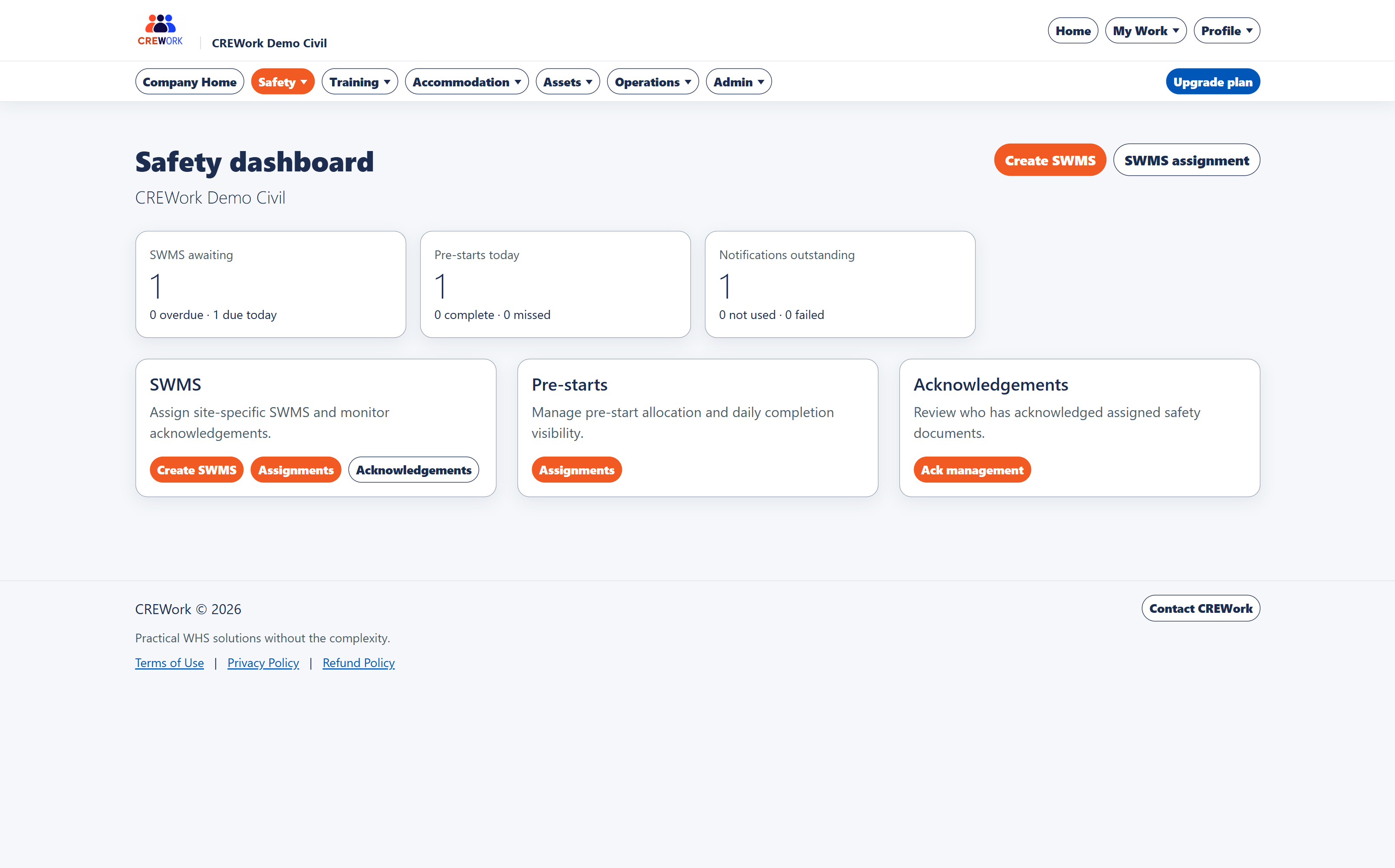
Safety documents and pre-starts
The Safety area is used to create and manage Safe Work Method Statements (SWMS), assign safety documents, monitor acknowledgements and review pre-start issues.
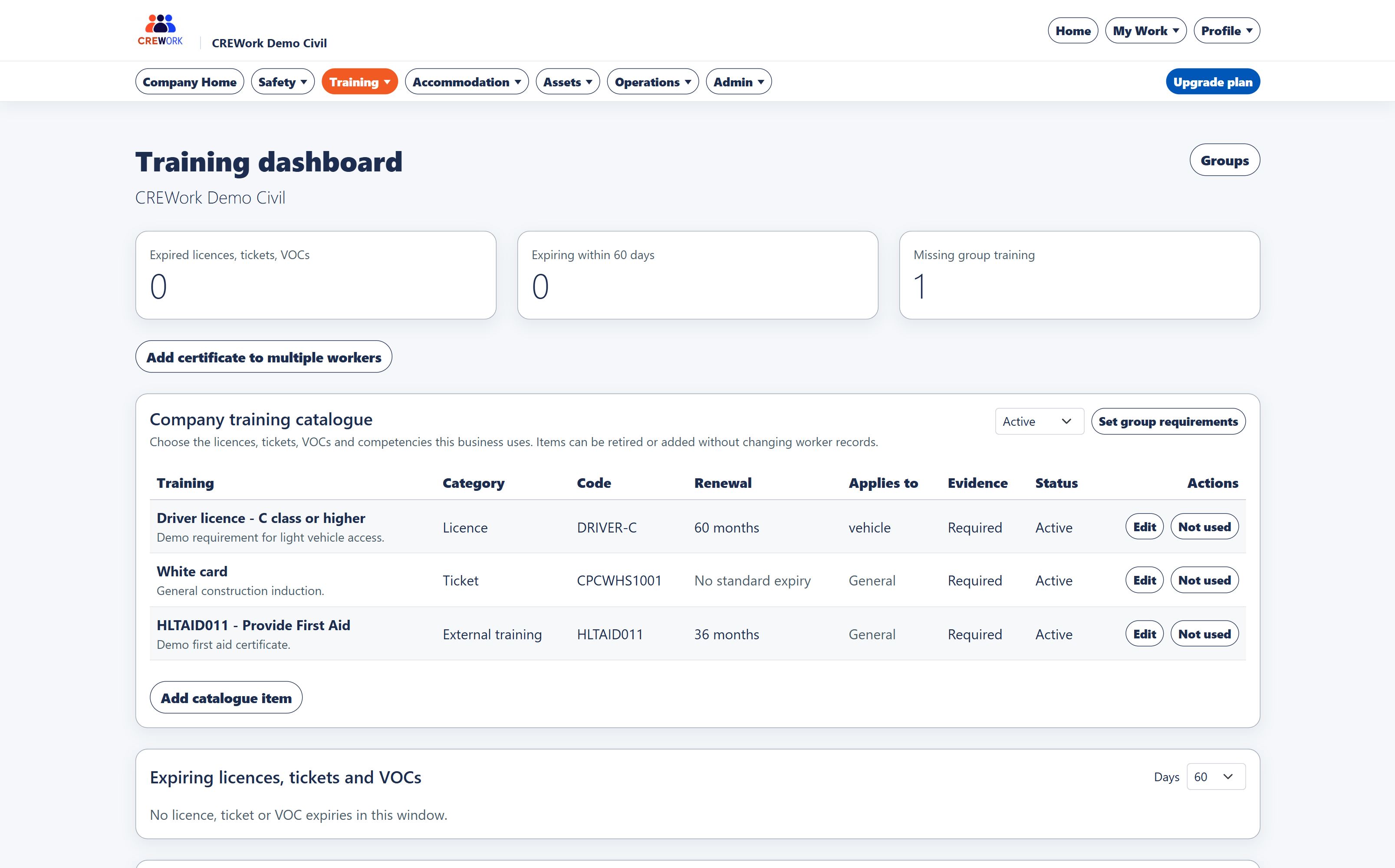
Training and evidence
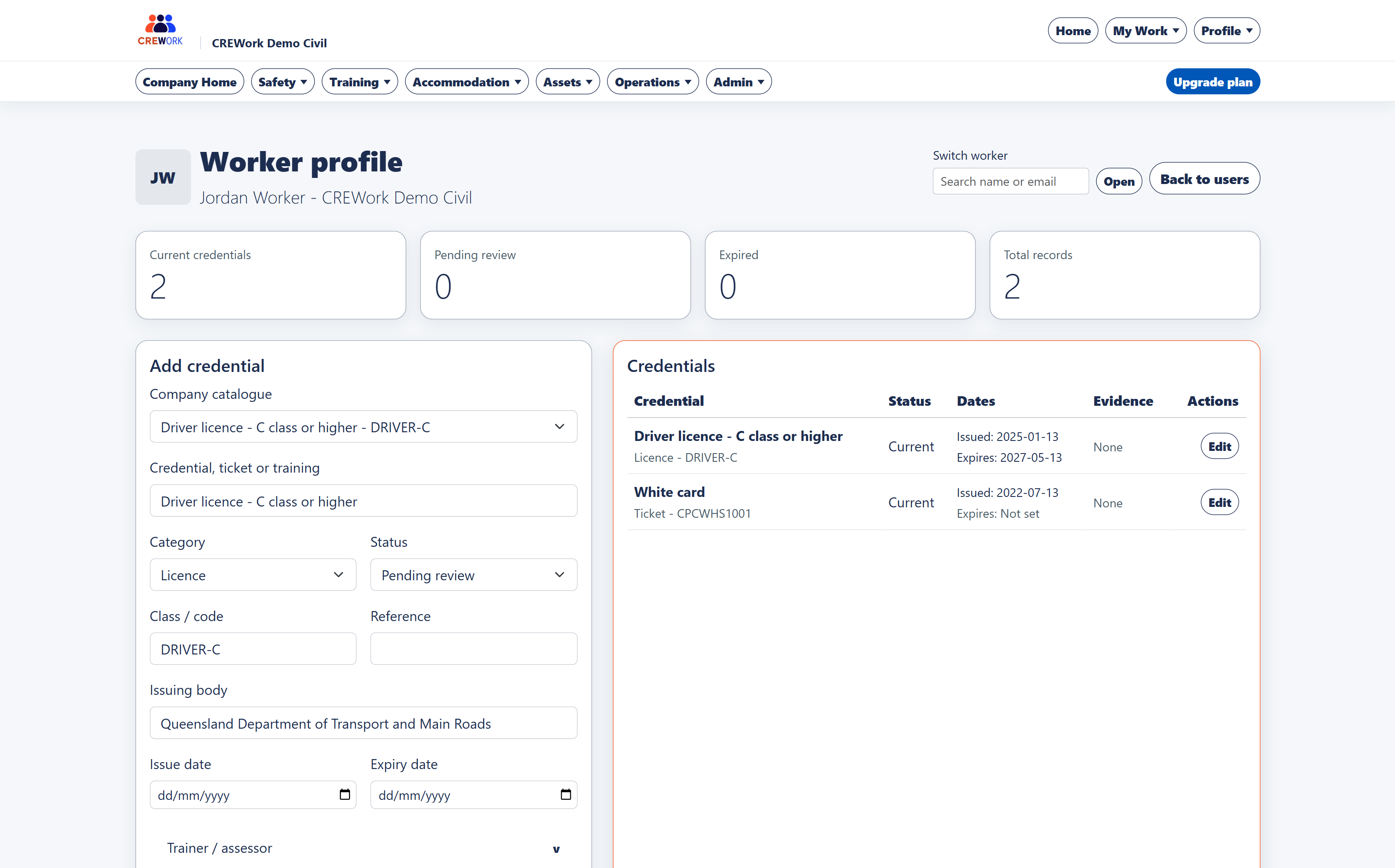
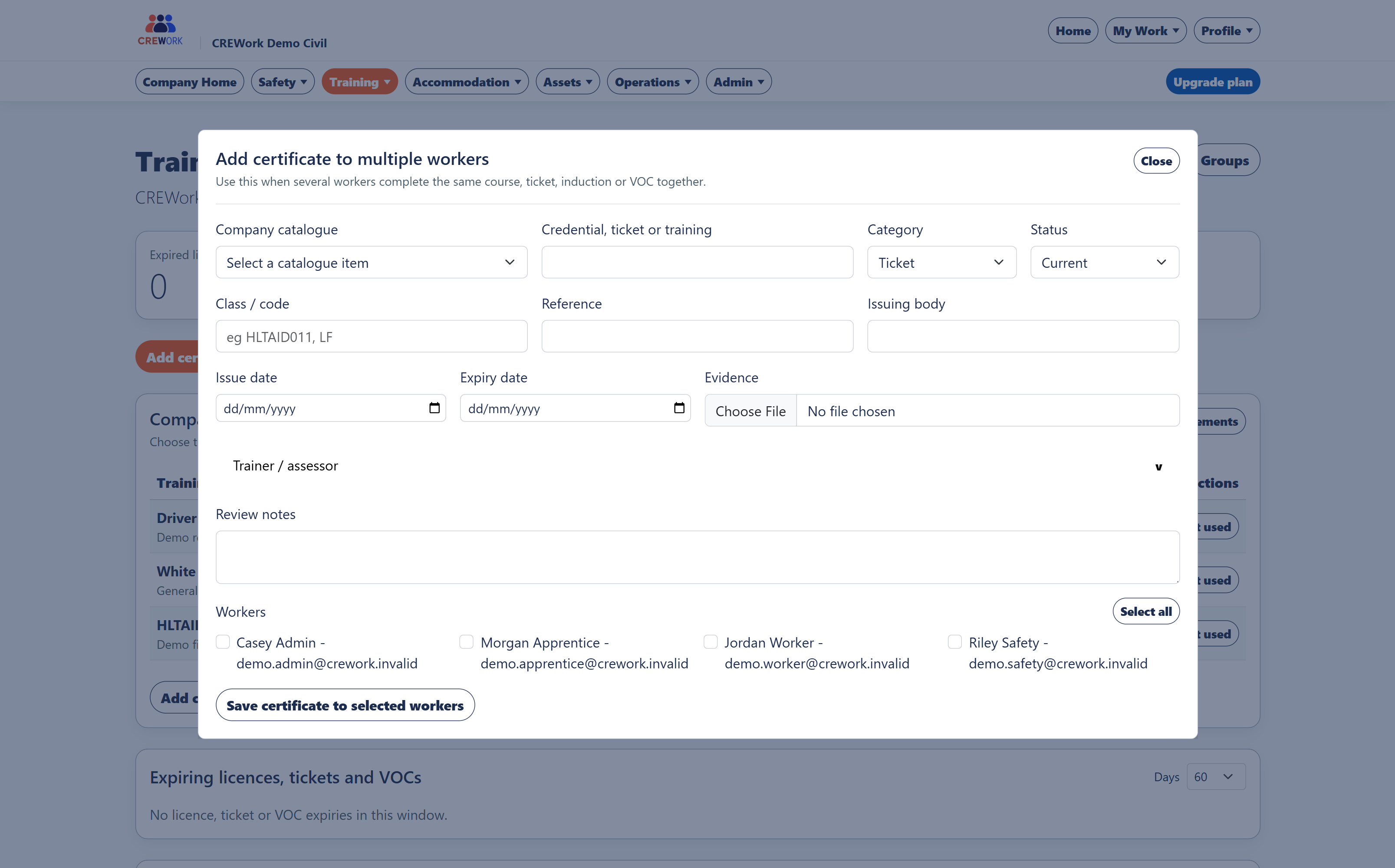
Training records cover licences, tickets, competencies, VOCs and evidence files. Use worker profiles for individual records, or the bulk certificate workflow when the same certificate applies to multiple workers.
Assets
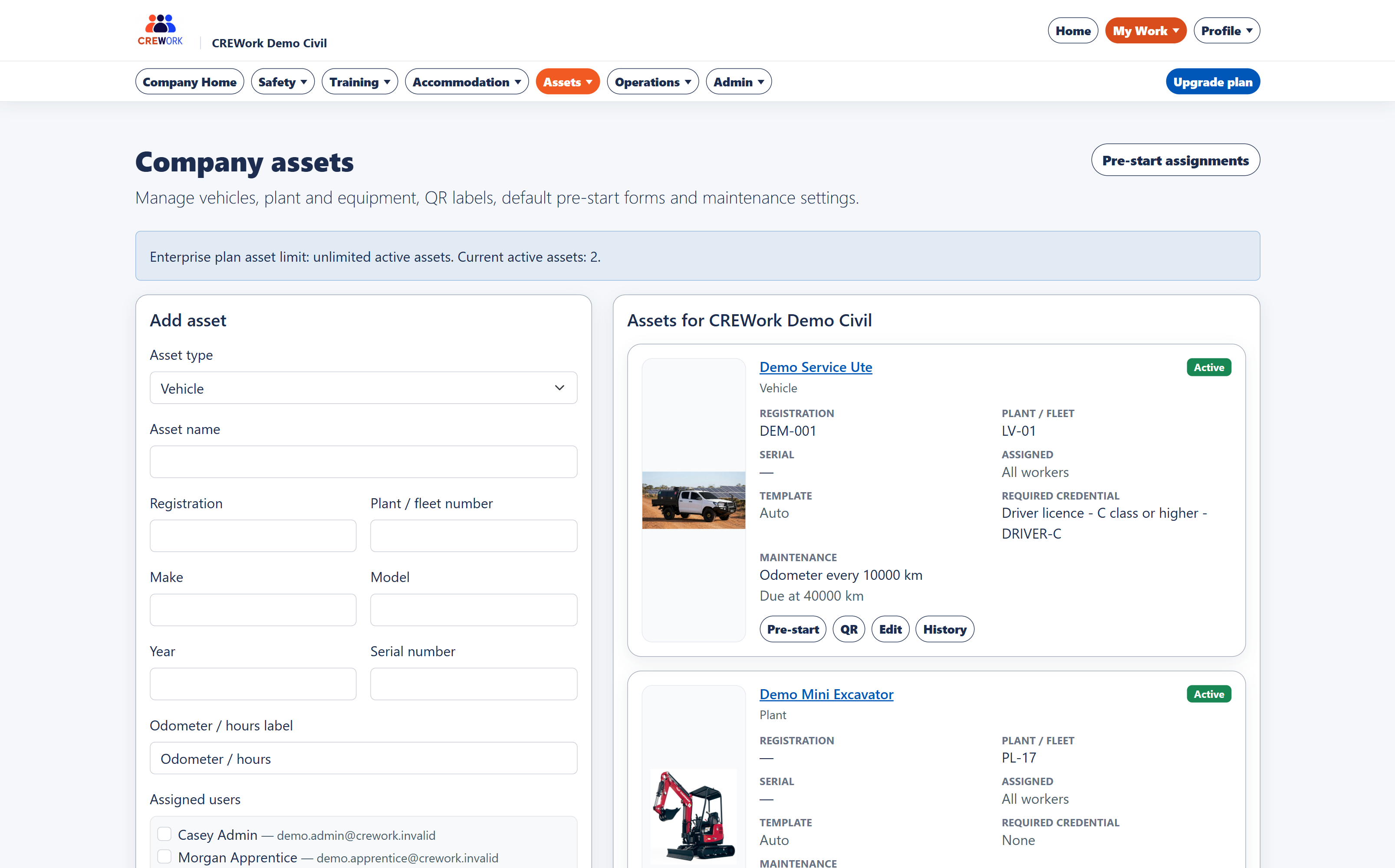
The Assets area records vehicles, trailers, plant and equipment. Assets can have photos, assigned workers, pre-start forms, training requirements and maintenance status.
Operations
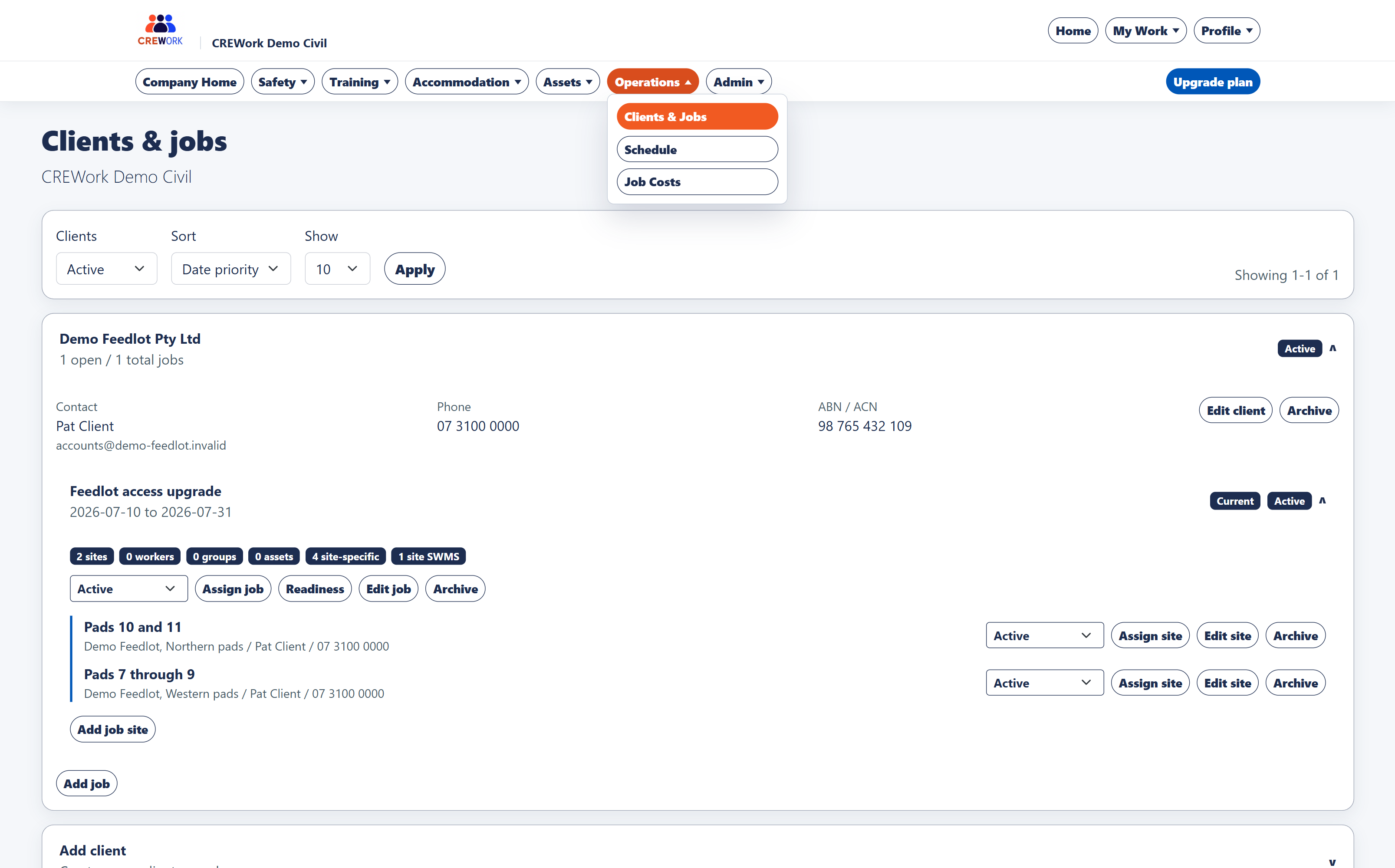
Operations covers clients, jobs, job sites, scheduling, daily planning, run sheets and job costs. Client and job-site structure helps safety documents and allocations stay site-specific.
Accommodation
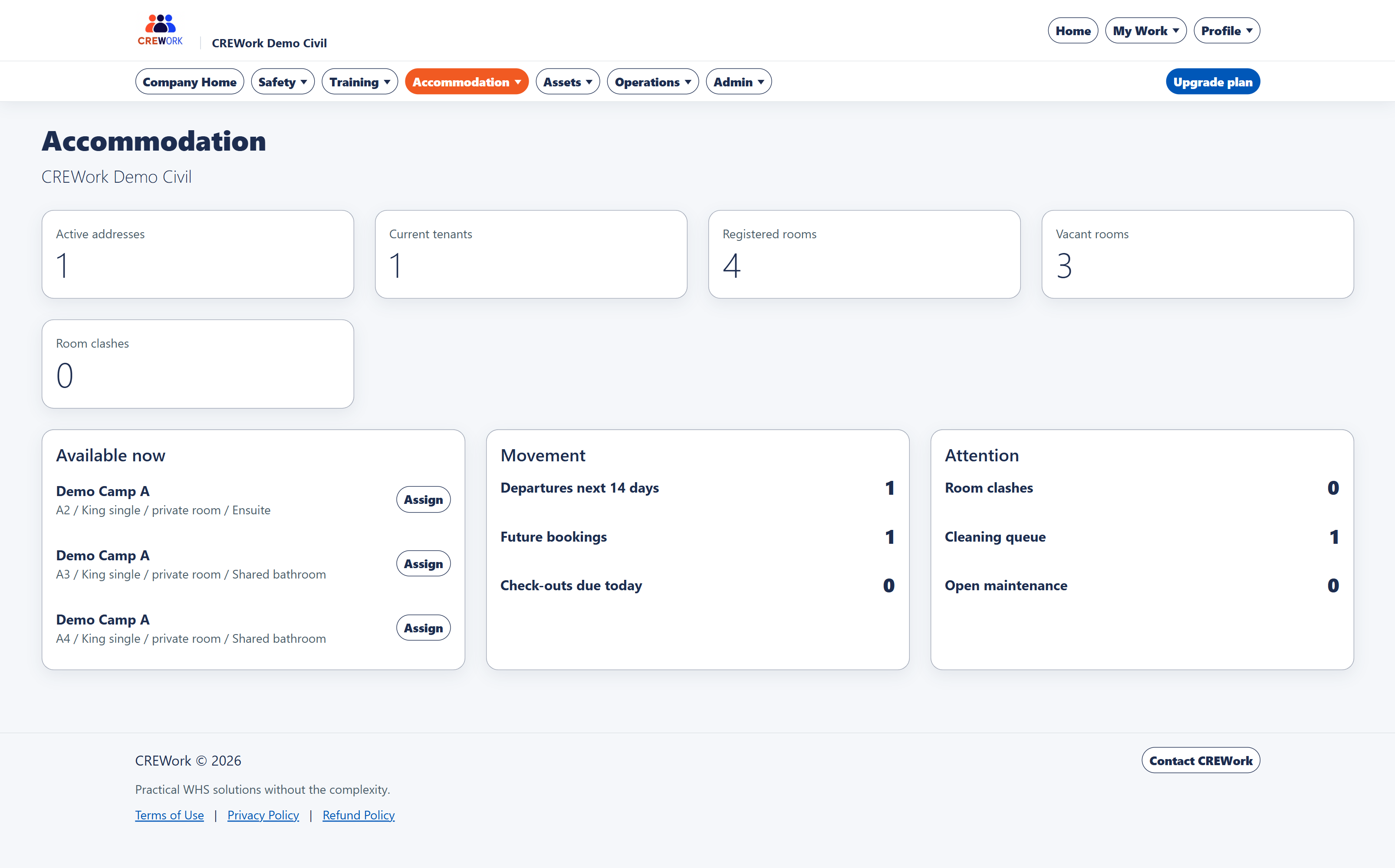
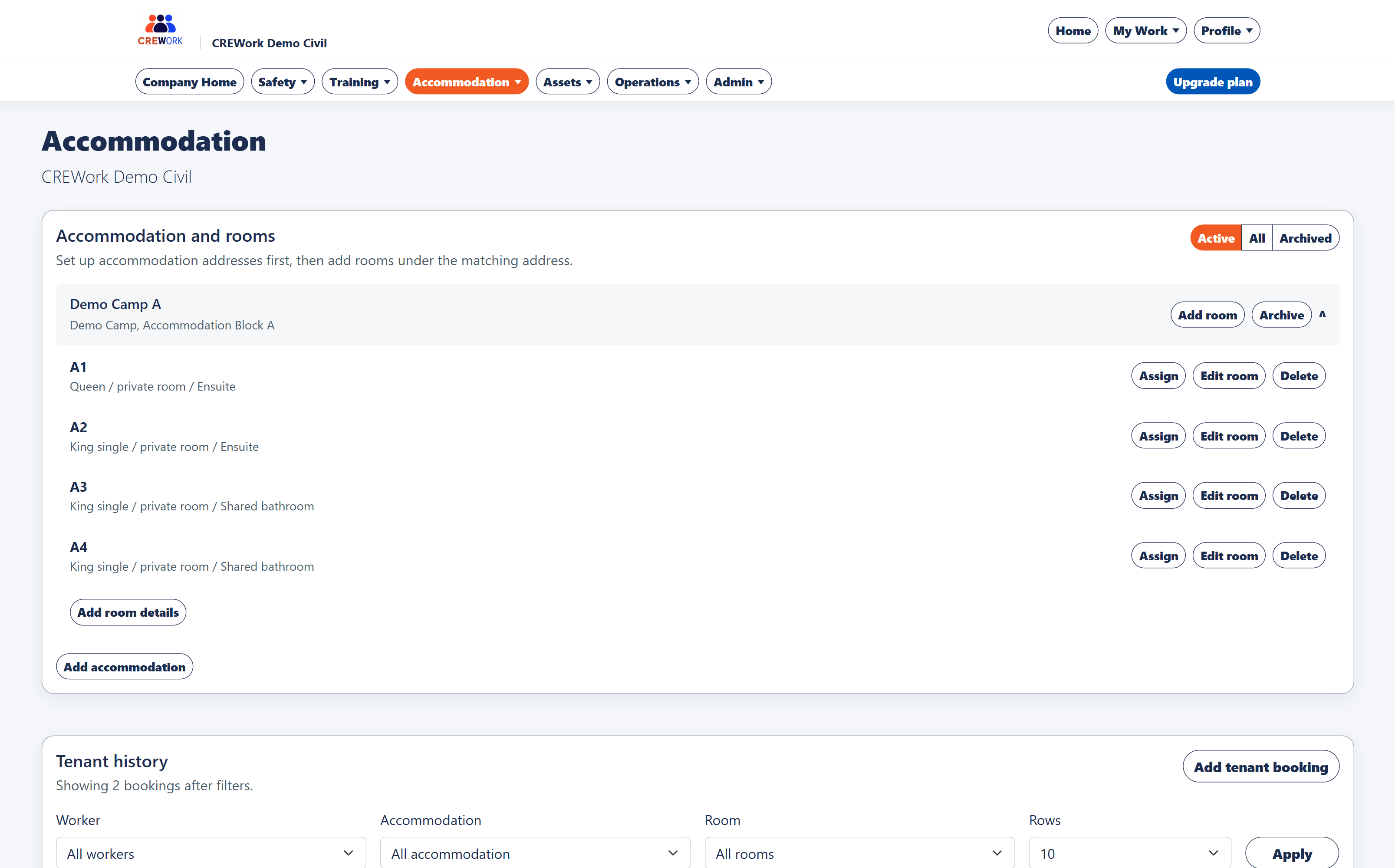
Accommodation records include addresses, rooms, tenant bookings, availability, check-in and check-out records, cleaning queues and maintenance requests.
Demo workspace
The demo workspace is designed for safe exploration. Demo records may reset, and users should not use the demo workspace for live safety documents or real operational records.